Easily Make Money Online for Free

1 comments


What is AdFly ?

AdFly is an advertising website that enables you to shrink long Website Addresses or URLs , into short URLs, and share with friends or to your website.


When someone clicks on this links , the website shows them an Advertisement for 5 seconds and then finally directs them to the intended destination of the URLs. 
The web addresses or URls can be anything , from links to popular music songs, popular websites, popular pictures etc.

Getting Started With AdFly...

Earning Money online using Adfly is really Easy , all you need to do is to register and account, find links to popular content and share links to Facebook, twitter, google plus etc. 
The procedure is outlined below. 

1. Register for an Account with Adfly – Click Here 
2. Verify your Email Address and Log in to the Website. 
3. Find Links to popular content such as trending news, trending photos etc, Shorten the links using adfly.


4. Finally copy the links and share them with Friends on social networks.


Easy Ways and Tricks to Earn more with AdFly

Earning money with Adfly is incredibly easy , and while there exists different methods people can use, the following are the guaranteed methods to help you easily earn money online using Adfly 

  • Start a Free Blog Using Blogger : Here you can start a free blog with blogger, e.g a movies site, music site, pictures site etc and then Placing your links on the Blog . Afterwards you can share your blog, and the more people view and click on the Links, the more you earn. 

  • Upload YouTube Videos : This is the most easy to use method with guaranteed traffic. Simply download and re upload trending you tube videos, and in the Description, place your Adfly link with some text e.g “download this song by clicking..” . Soon you will get lots of Traffic. 

  • Social Networks : Share your links on Facebook pages, twitter and google plus . When people click , you earn money. 

  • Photo Sharing Sites : Share your links to photo sharing sites e.g Pinterest, Imgur and even instagram . If your photos are cool , guess what ? people will click on your links and you will Earn money.

How Much Can one Earn Using Adfly ?

While rates differ depending on countries, Adfly does pay you $1 per 1000 clicks to your links . so if you get 10,000 clicks, that is around $10 for free. 

While 10,000 clicks may seem more ? do not let it discourage you , if you successfully implement the above tips and tricks of getting more clicks with Adfly, you can easily attain more than 10,000 clicks.

Adfly Payment Methods

Currently, Adfly supports both paypal and Payoneer for payments and you can get daily payments provided you achieve a minimum $5 amount in earnings.

Register for Adfly and Start Earning Money Online

With that said , it is time to make money online. Get started by clicking on the Link below to get started using AdFly or simply Click here.

Click to join AdFly to easily earn money online.

Read More »

eBay users need to change their passwords following a security breach. However, the process isn't as easy or upfront as it could be. [ How to change your eBay password ]

0 comments


eBay is asking users to change their passwords following a security hack that compromised a database with user passwords. So just how and where do you change your password ??

eBay's home page now sports a Password Update notice with a "Learn more" link to another page that explains what happened. But neither page links directly to the option to actually change your password, leaving users in a lurch if they don't know what to do or where to go.

For all you eBay users, here's how you can change your password:

1 ) Sign into your eBay account at eBay's home page.

2 ) After you have logged in, hover over the down arrow at the top of the page next to your name. A dropdown menu displays a few options, including one for Account settings. Click the Account settings option.

3 ) Your account page appears. On the left side, under my eBay Views, click the link for Personal Information.

4 ) At the Personal Information page, a section called Account Information appears at the top with a setting for Password. Click the Edit link to the far right of the word Password.

5 ) eBay prompts you to enter your email address or user ID. Type either one and then click Continue.

6 ) eBay asks how you want to reset your password , either through email or a text message. Click the option you wish to use.

7 ) Assuming you selected the email option, eBay sends you a Reset Your Password message. Click the link in the email. That link brings you to a page where you can enter your new eBay password. If you picked the text option instead, eBay displays a form to enter a PIN and texts you that PIN. Type the PIN in the appropriate field on that form, and the page to enter your new password appears.

8 ) As always, try to devise a password that's as strong as possible yet one you'll remember. I know, I know, that's not easy. As one idea, a good password manager can make the process of creating, storing, and using your passwords a lot more palatable.

9 ) Enter your new eBay password once and then again to confirm it. eBay then prompts you to log in again with your new password.

You can shed a few steps off the process by not initially signing into eBay. Simply click the Sign in link at eBay's home page. Then click the "forgot your password" link. eBay deposits you at the Reset your password page where you can pick up the process at Step 5 above.

In light of the security breach, eBay needs to make the process to change your password much easier and much more accessible. But for now, these steps should help you change your password without too much agita.

I want to tell this Details I got by Cnet Site.
So , Thank U Cnet !!

Read More »

How to switch your Windows 8.1 log-in to a local account. ( Using a Microsoft account to log in to Windows 8.1 offers some advantages over using local accounts. If those advantages don't appeal to you, you can switch back to a local account. )

0 comments


Firstly , I want to say , This informantions i got from CNet.com Site. 
So , Thank U Very Much CNet.com Site.

When you configure a Windows 8.1 system the very first time, you're asked to use a Microsoft account to log in, and though you don't have to use one, it's not real clear at the time. If you used a Microsoft account to set up your Windows 8.1 PC and would like to use a local account instead , you can switch.


Using a Microsoft account does have some advantages over using a local account. For example, using a Microsoft account log-in lets you sync your settings across different Windows 8.1 PCs. You can also use Microsoft's integrated cloud storage, OneDrive ( formerly SkyDrive ). 
Downloading apps from the Microsoft App Store for the Modern interface ( Start screen ) requires a Microsoft account as well. But if you don't use any of these features and would still prefer to switch to a local account, here's how:

Step 1 :- 
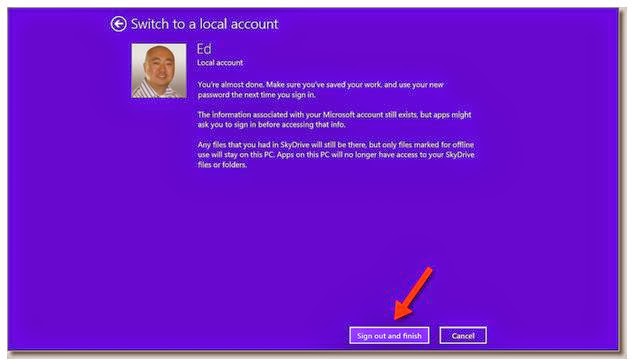
Go to Settings > Change PC Settings > Accounts > Your Account , then under your name and Microsoft account e-mail address , click on the " Disconnect " link.


Step 2 :- 
When prompted , enter your Microsoft account password to verify that it's your account.

Step 3 :- 
Now enter the local username you want to use , your password, and a password hint.


Step 4 :- 
Click or tap on the "Sign out and finish" button to complete the switch to a local account.


You should now be able to log in to your Windows 8.1 PC with the local account you just created. 
If you ever change your mind and want to use your Microsoft account again, go back to your account settings and click the link to " Connect to a Microsoft account. "


Read More »

How to back up and restore your Windows 8 Start screen layout. ( If you've taken the time to carefully customize your Windows 8 Start screen layout, backing it up might be a good idea. )

0 comments


Firstly , I want to say , This informantions i got from CNet.com Site. 
So , Thank U Very Much CNet.com Site.


The Windows 8 Start screen is the gateway to your PC and usually the first thing you see when you log in, unless you've chosen to go directly to the desktop . The update to Windows 8.1 also introduced many more customization options to the Start screen.

Whether you use the Start screen only on occasion or rely on it heavily, you've probably spent some time setting it up just the way you like it. To save you from having to go through it again when you reinstall Windows or if your Start screen gets rearranged accidentally, you can back up your layout and restore it later. Here's how:

Step 1 :- 
Open the Run dialog box by hitting Windows key + R.

Step 2 :- 
Type, " %LocalAppData%\Microsoft\Windows " and hit Enter to open Windows Explorer to the location of the Start screen layout files.


Step 3 :- 
Copy the files, " appsFolder.itemdata-ms " and " appsfolder.itemdata-ms.bak " to your backup folder.

If something happens to your Start screen layout and you want to restore it, just copy the backup files back to the original location and overwrite the files already in the folder.

That's it. Now if your nephew or a friend comes over and they rearrange your Windows 8 Start screen , you can relax and restore it in just a few minutes.


Read More »

How to customize the new Start screen in Windows 8.1 ( Now you Can easily move and resize tiles, create and name groups of tiles, change the background image, and pin freshly installed apps on the Start screen. )

0 comments

Firstly , I want to say , This informantions i got from CNet.com Site. 
So , Thank U Very Much CNet.com Site.


The Windows 8 Start screen is largely a love-it-or-hate affair. But even those who aren't too keen on the screen may welcome the new ways you can customize it in the Windows 8.1 Preview.

Right off the bat, Windows 8.1 offers a dedicated Customize button for the Start screen where you can tweak a variety of settings. Right-click anywhere on the Start screen to display the app bar and click on the Customize button. You can also right-click on any tile to open the Customize view.

The screen dims slightly. You can now drag and drop any tile to another spot on the screen. Moving a tile by dragging and dropping is nothing new. But in this Customize view, you can't accidentally open an app by clicking on or tapping its tile.

You can select multiple tiles by clicking on them, and then drag and drop all of your selected tiles en masse to another spot. There's an array of other options that can be run on multiple tiles.

You can unpin them from the Start screen, uninstall them, resize them, turn off any live tiles, or just clear the selection. You also have more tile sizes from which to choose. Certain tiles offer a choice of small, medium, wide, and large. You can enlarge the tiles for your favorite apps and shrink the ones for apps you rarely use.

If you organize your tiles into distinct groups, you can more easily name them. In the Customize view, simply click on the text box for Name Group and enter a name.

To get out of Customize view, just click or tap on the Customize button on the app bar.

What other tricks will you find in the new Start screen? Less clutter for one.

In Windows 8, any app you install automatically takes up residence on the Start screen, easily turning it into a crowded and disorganized mess. In Windows 8.1, apps don't make their way to the Start screen unless you pin them there.

After you install a new app, click on the down arrow in the lower left corner of the Start screen. That takes you to the App screen where you'll see any recently-installed apps highlighted with the word New. Right-click on the tile or tiles of any apps that you wish to appear on the Start screen and click on the Pin to Start button. Windows 8.1 then transports you back to the Start screen to reveal the new tile.

Finally, more choices are available for you to change the color and background of the Start screen.

Hover your mouse over the small dash icon in the lower right corner of the screen to display the Charms bar. From there, click or tap on the Settings charm and then select the Personalize option. You can pick background and accent colors from the on-screen palette or choose a specific background image. Best of all, you can pick the same background image used by your desktop. That option makes the visual trip between the Start screen and desktop less jarring.

The Start screen may still seem like an unnecessary annoyance to many Windows users, especially those working with a non-touch PC. Windows 8 does offer a boot to desktop mode where you can bypass the screen entirely. But the latest tweaks in Windows 8.1 do make the Start screen a bit friendlier and decidedly easier to manage.

Read More »

How To Protect your Mac from SSL bug. ( You can bypass the SSL vulnerability in OS X with a couple of temporary changes, until a software fix is made available. )

0 comments


Firstly , I want to say , This informantions i got from CNet.com Site. 
So , Thank U Very Much CNet.com Site.


Recently, Apple released an iOS update to address a bug with its SSL implementation, which would allow a nefarious individual on the same local network as your computer to intercept sensitive information as you browse the Web.

This type of attack, called a man-in-the-middle attack, is possible because in the latest versions of OS X and iOS (up to version 7.0.5) the operating system does not check the signature in a TLS Server Key Exchange Message, allowing a third-party to spoof a private key or simply omit using one and intercept the SSL data. Since encrypted SSL data is used for sensitive information such as financial and medical records, this could potentially give someone access to the data if you are accessing it on a public or otherwise shared network.

Apple has issued a fix for this in iOS with version 7.0.6, which was released last Friday; however, this only addresses the problem in iOS and not OS X. Apple has said a fix will be available soon for the desktop operating system, but so far has not mentioned a release date. While a fix will likely come within the next week, until then you can take steps to ensure your system is properly secured.

1 ) Use a patched browser.

This problem affects Apple's Safari browser , and may affect versions of Chrome running on test releases of OS X. Therefore, until a fix is released you might consider downloading and using Firefox , which has been deemed safe from this bug. You can test any browser you use by going to this Web site , which will run a test and notify you if your browser's SSL data can be intercepted.

2 ) Avoid public networks.

While this problem exists, it can only be taken advantage of if an attacker is on the same local network as yourself. Therefore, if you are using a publicly-accessible network such as those at cafes or libraries, then be sure to either use an unaffected browser, or avoid accessing banking and other sites with sensitive data.


* Questions ?? Comments ?? Have a fix ?? 
Post them below Now !! :D


Read More »

Add useful features to the Windows 8 Start Screen. ( A Windows 8 program called Start Screen Unlimited adds some useful features to the Windows 8 Start Screen. )

0 comments

Firstly , I want to say , This informantions i got from CNet.com Site. 
So , Thank U Very Much CNet.com Site.

The Windows 8.1 Start Screen is populated with tiles to apps and a link to sign out, lock Windows, or switch users. You can customize the appearance of the Start Screen, but there's not much you can do to add features or functionality.

Start Screen Unlimited is a Windows 8 program that adds a few useful features to the Windows 8 Start Screen, like date and time, a link to the Windows control panel, and more power options. It also adds a Google search bar directly to the Start Screen.

* Before You Download These Software , Please Read That Considerable Note In Top Of This Page.

#. Free Download Start Screen Unlimited.

After you install Start Screen Unlimited , you'll see a toolbar in the upper right-hand side of the Windows 8 Start Screen. If you press on the infinity logo, you can move the toolbar around the screen. The power options include hibernate, sleep, reboot, and power off. The configuration options display a link to the control panel and allow you to close the toolbar. The "i" button allows you send feedback, buy the deluxe edition, and check for updates.


The Google search bar can be used to search directly from the Start Screen, but it requires a physical keyboard. The official Google search app for Windows 8 brings up the Touch Keyboard automatically, making it a better choice for touch-screen users.

The lite edition of Start Screen Unlimited is free. Buying the deluxe edition allows for commercial use and adds additional menu customization options.

Related Stories.

#. How To Customize The New Start Screen In Windows 8.1  

#. How To Back Up And Restore Your Windows 8 Start Screen Layout. 

#. How To Switch Your Windows 8.1 Log-In To A Local Account.

Read More »

Tweet Now !!

Recommend us on Google!